DRT HOW 2s / DIVI 5 & WORDPRESS TUTORIALS
BUILD IT · HOW 2 #04
Good questions.
Clear answers.
How to build a clean FAQ accordion in Divi 5, with readable questions, useful answers and open states that feel like part of your design.
it my own?Short. Familiar. Easy to scan.
→
WHAT YOU’LL BUILD
Give the next question an obvious place to go.
Build a compact FAQ for a service, product or landing page. Visitors can scan the questions and reveal the detail they need.
You need: WordPress with Divi 5, a draft page and a handful of real customer questions. The screenshots show the native Accordion and Accordion Item controls on our Testing site.
Choose the questions visitors actually ask
Collect four or five questions that help someone make a decision. For a design studio, start with what is included, whether brand colors can change, what the client supplies, and what happens after launch. Write the answer first, then use the real question as the label.
Keep each answer focused: a direct answer, one useful detail and a next step when needed. Put essential prices, eligibility, delivery promises and your main call to action in the visible page content too. People should not have to open every panel to discover the basics.
Insert a native Accordion module
Work on a draft or a backed-up copy. In Divi 5, add a regular section and a single-column row, then insert Accordion from the module picker. You do not need another FAQ plugin for the visual interaction.
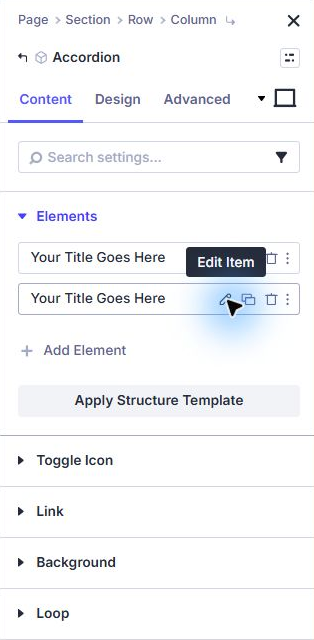
Open the module’s Content → Elements list. Each item holds one question and answer. Use its pencil to edit it, duplicate an item when a useful starting point already exists, and remove unused starter items.
Write a clear question and a useful answer
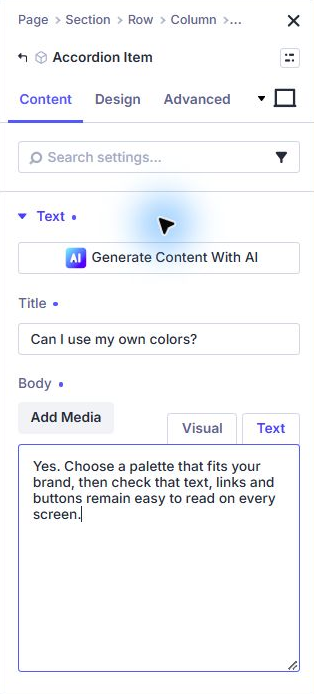
Edit the first Accordion Item and expand Content → Text. The Title is the question people see while the panel is closed. The Body is the answer they reveal.
Use ordinary paragraphs and descriptive links in the answer. “Read the installation guide” is clearer than “click here.” Keep a contact link outside the accordion for a question you have not covered.
Return to the parent Accordion before adding the next item. Replace every “Your Title Goes Here” and filler answer before publishing. Do not set an overall module link just to add one helpful link inside an answer; the module itself is an interactive control.
Give open and closed panels a deliberate style
Return to the parent module’s Design tab. The Toggle options control open and closed backgrounds. Style Title Text, Closed Title Text, Body Text and the icon so the question remains easy to read in both states.
Try a warm cream closed panel, dark teal question text, and a pale teal open panel. These are design suggestions, not defaults. Start around 18–20px for questions and 16–18px for answers. Give the answer a comfortable line height near 1.6.
Use consistent spacing and a modest border. A plus icon can suggest that more content is available, but it should not be the only readable indication of the question. Avoid giving the panel a fixed height; a longer answer needs room to expand.
Keep the phone experience simple
Inspect the phone layout in Divi, then check a real narrow browser or phone. Let long questions wrap naturally. Make the whole question area comfortable to select and leave space around neighboring controls.
Open the longest answer and follow its links. Watch for text touching the border, a wide image creating horizontal scrolling, or a sticky header covering the questi