DRT HOW 2s / DIVI 5 & WORDPRESS TUTORIALS
BUILD IT · HOW 2 #09
A good section.
Ready to use again.
Save a section to the local Divi 5 Library, add it to another page and customize the copy without rebuilding its layout.
→
WHAT YOU’LL BUILD
Your own small design library.
Build a contact callout once, then reuse its structure on another page. This walkthrough uses the Divi Library on your WordPress site. You do not need Divi Cloud.
You need: Divi 5, an existing section you can edit and a second draft page. Work on drafts or staging while learning.
Choose a section worth reusing
Open your draft in the Visual Builder. A simple callout is a good starting point: one section, one row, a heading, a short paragraph and a Button. Give the heading a clear promise and the button a real destination.
Open Layers if selecting the section on the canvas is awkward. Select the containing Section, rather than just its heading or row. Saving that parent keeps the whole callout together, including its spacing and child modules.
Save the section to your local Library
Right-click the Section, or open its three-dot menu, and choose Save To Library. Use a recognizable name such as DRT — Contact callout — Teal. Add a category if you already organize your Library that way.
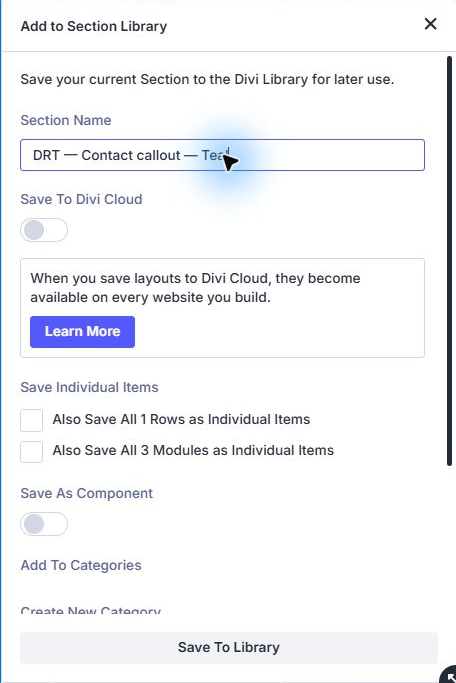
For an ordinary reusable starting point, leave any Save as Global or linked Component option off. Keep the item local rather than enabling Save To Divi Cloud. Then choose Save To Library.
Insert it as a section on another draft
Save your first draft, open the second draft in Divi and click the blue Add Section plus at the place the callout belongs. Choose Add From Library, find your saved Section and select it. Use Use This Section to insert it.
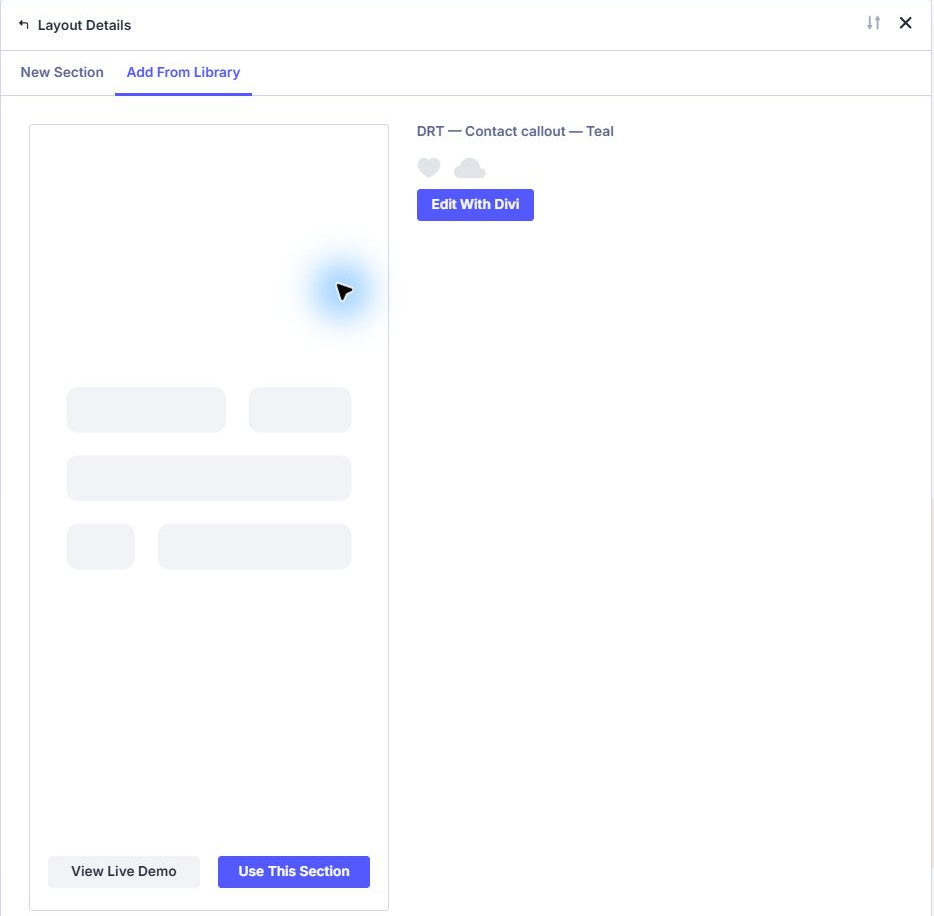
The Library separates section items from rows, modules and full layouts. If you cannot find an item, check its Type in WordPress → Divi → Divi Library. A saved row belongs inside a section; it is not a section item.
Customize the copy for its new page
Change the heading, paragraph and button destination in the new copy. For example, turn “Tell us about your website” into “Ask about this service.” Keep the same spacing and visual structure.
Check links, images and any section IDs carried over with the design. Give repeated anchor IDs unique values on the same page. Avoid changing a shared preset or variable if your intention is to adjust only this copy.
Verify that you saved the right kind of item
Save both drafts and view them outside the Builder. Change ordinary text in the second section and confirm the first page still has its own wording. This checks that you inserted an independent copy.
- The saved item is a Section with a useful name.
- The original page and the second page retain their intended wording.
- Buttons point to the right place on each page.
- There are no duplicate anchor IDs on a page.
- The section fits at phone width, with readable text and a reachable button.
Build on this: Style reusable buttons with a named preset ↗
YOU’VE BUILT IT
Keep the structure. Change the message.
A small collection of well-named sections makes the next page easier. Save the patterns you actually use, and keep their links and wording relevant.
References & notes
Written for Divi 5. Check the features available in your installed release; labels can change. Editor screenshots show actual controls on our Testing site. Diagrams are explanatory illustrations.
Published November 14, 2026 · By Divi Ready Themes · Independent of Elegant Themes.