THE DIVI 5 FIXES LIBRARY
Fix Stretched and Uneven Images in Divi 5
Fix stretched photos and uneven image rows in Divi 5 using Aspect Ratio, Object Fit and Object Position—without custom CSS.
Last verified September 29, 2026
The Problem
Photos in the same row have different heights—or look squashed after you resize them. The image frame and the way the photo fills it need separate settings.
The Fix
Give matching images the same aspect ratio, then use Cover to preserve their proportions. Adjust the focal point so the subject stays visible. This changes the display, not the original media file.
Open the image
Open the page in Divi’s Visual Builder and select the Image module. This walkthrough applies to ordinary Image modules; a section background uses different controls.
Set one image shape
Go to Design → Sizing. Clear any old fixed Height, Min Height or Max Height that conflicts with the intended proportions. Choose one ratio for the row: use width 4 and height 3 for landscape cards, or 1 and 1 for squares. Apply the same ratio to each image.
The crop shows where the two Aspect Ratio fields are located. Its values are still “auto”; enter your chosen width and height.
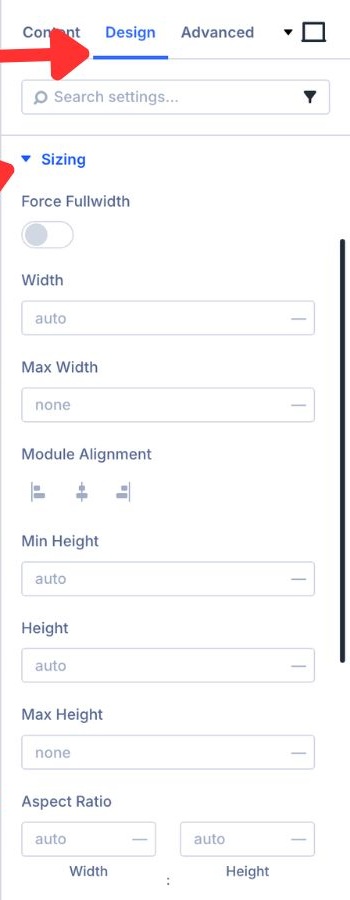
Sizing controls. Cropped from an Elegant Themes Divi 5 tutorial.
Prevent stretching
Open Design → Framing. Set Object Fit to Cover. The photo keeps its proportions and fills the frame; excess edges are cropped. Use Contain instead when the entire logo, product or diagram must remain visible—even if that leaves empty space.
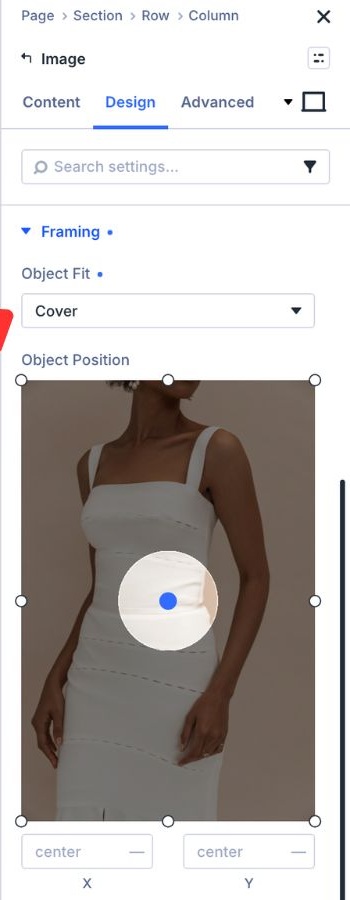
Cover and Object Position controls. Cropped from an Elegant Themes Divi 5 tutorial.
Keep the subject visible
In Object Position, move the focal point until the important detail is inside the crop. Check each image individually: a good position for one photo may cut off the subject in another.
Check phone and tablet
Switch through Desktop, Tablet and Phone in the builder. Adjust the ratio or focal point at the relevant breakpoint if needed. Save, exit the builder, and inspect the page at wide and narrow widths. Success means consistent image frames, natural proportions and visible subjects.
Troubleshooting
The image still looks stretched
Check Object Fit again; Fill can distort the image. If the source file itself is already stretched, replace it with an undistorted original.
The images still have different heights
Matching ratios produce matching heights only when the rendered widths match. Compare column widths and image width settings, then check for old fixed-height overrides.
A face or product is cut off
Cover crops the edges. Move Object Position, choose a less aggressive ratio, or use Contain when the full object must remain visible.
I cannot find Framing
Confirm you selected an Image module. Image sub-elements in other modules may put Framing inside Design → Image. Check the Divi version on a staging copy before updating an older installation.
It looks right on desktop but wrong on mobile
Inspect the Phone and Tablet values. A responsive override may use a different height, ratio or focal point than Desktop.