THE DIVI 5 FIXES LIBRARY
Create a Smooth Two-Image Rollover in Divi 5
Create a smooth two-image hover effect in Divi 5 using two Image modules and a small CSS snippet—perfect for black-to-color icons, alternate product views, and before/after effects.
Create a Smooth Two-Image Rollover in Divi 5
Sometimes the cleanest hover effect is still the old-school one: show one image normally, then smoothly reveal a second image when the visitor hovers. This works especially well for black-to-color icons, alternate product views, and before/after-style effects.
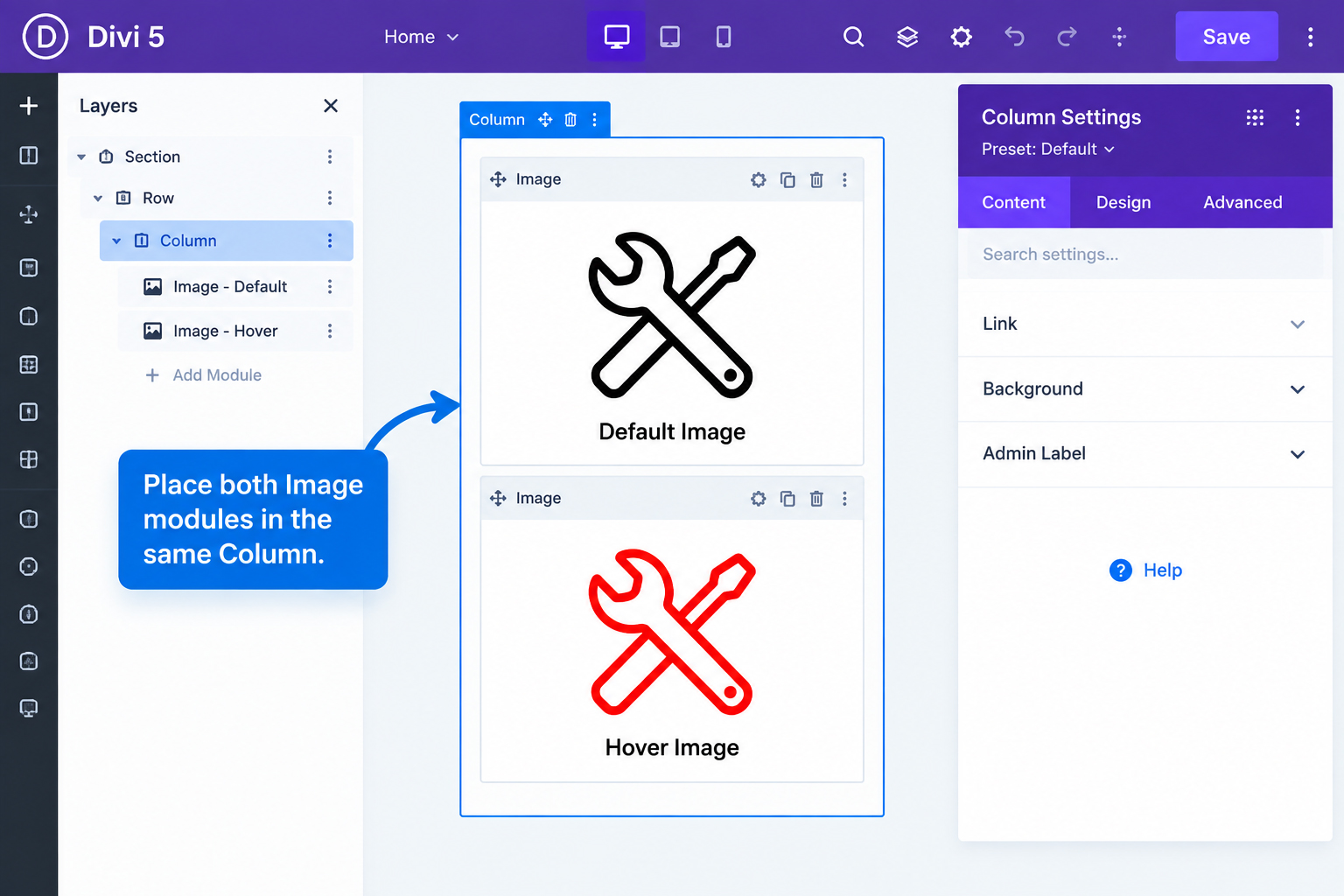
1. Add Two Image Modules
Place two Divi Image modules in the same Column. The first image is the normal/default image. The second image is the version you want to reveal on hover.
2. Give the Column a CSS Class
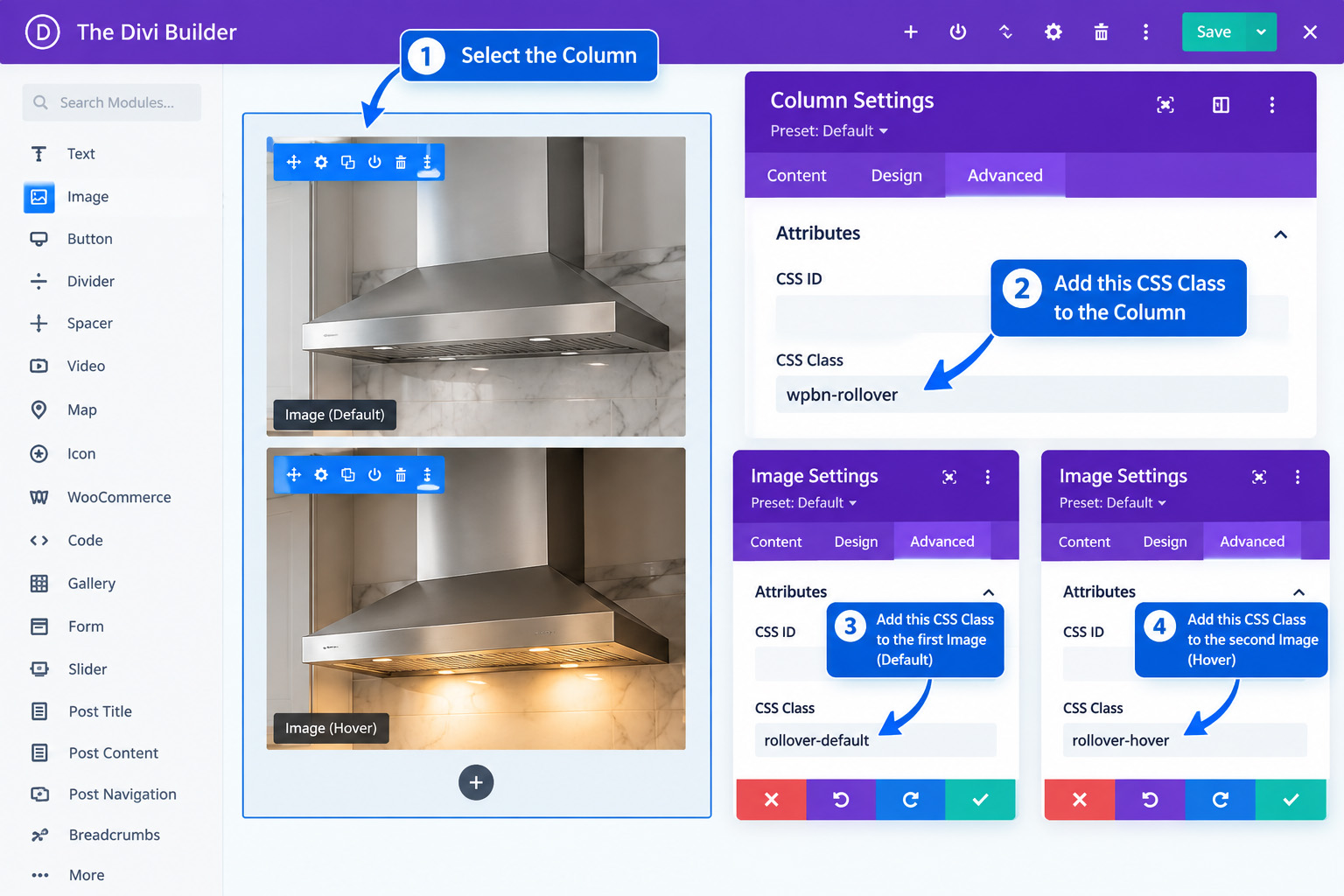
Open the Column settings and add the class wpbn-rollover. In Divi 5, add reusable classes from the element’s Advanced → Attributes controls.
3. Class the Two Image Modules
Give the normal image the class rollover-default and the hover image the class rollover-hover.
4. Add the CSS
Paste the CSS below into Divi → Theme Options → Custom CSS, the page’s Custom CSS area, or another stylesheet.
.wpbn-rollover {
  position: relative;
}

.wpbn-rollover .rollover-default,
.wpbn-rollover .rollover-hover {
  margin: 0 !important;
  transition: opacity .35s ease;
}

.wpbn-rollover .rollover-default {
  position: relative;
  z-index: 1;
}

.wpbn-rollover .rollover-hover {
  position: absolute !important;
  inset: 0;
  z-index: 2;
  opacity: 0;
}

.wpbn-rollover .rollover-default img,
.wpbn-rollover .rollover-hover img {
  width: 100%;
  display: block;
}

.wpbn-rollover:hover .rollover-default {
  opacity: 0;
}

.wpbn-rollover:hover .rollover-hover {
  opacity: 1;
}
5. Adjust the Fade Speed
The transition is set to .35s. Try .2s for a quicker rollover or .5s for a softer fade.
6. Test Desktop and Mobile
Hover is mainly a desktop interaction. On touch devices, visitors will simply see the default image, so make sure that first image still works on its own.
The second image occupies the same space as the first and fades in smoothly on hover. There is no jump and no abrupt swap.
The Hover Image Does Not Line Up Exactly
Make sure both source images have the same pixel dimensions and aspect ratio. The CSS stacks the modules in the same position, but it cannot compensate for different image canvases or inconsistent whitespace inside the image files.
Hover Image: rollover-hover
Then paste the CSS and adjust the transition speed to taste.
Keep building.
Browse more Divi 5 tutorials for hover effects, headers, responsive behavior, and layout fixes.



Recent comments: