DRT HOW 2s / DIVI 5 & WORDPRESS TUTORIALS
BUILD IT · HOW 2 #10
A shorter route.
Call or email.
Add phone and email buttons in Divi 5 with tel: and mailto: links, readable labels and a simple device check.
→
WHAT YOU’LL BUILD
Make contacting you easier.
Connect two native Button modules to a business phone number and email address. The buttons ask the visitor’s device to open its calling or email app; they do not send a message automatically.
You need: Divi 5, a draft contact section and the public business contact details you intend to display.
Choose clear labels and verified contact details
Add two Button modules to a contact section. Label the first Call our team and the second Email our team. Keep the phone number or address visible nearby so visitors can copy it if their device has no suitable app.
Use contact information you control and monitor. The examples below use a reserved fictional US phone number and example.com email address. Replace both before publishing.
Give the phone button a tel: link
Open the first Button’s Content → Link group. In Button Link URL, enter tel:+12025550123. Replace the example with your own country code and number. The plus sign supplies the international prefix; omit visual spaces and punctuation in the link itself.
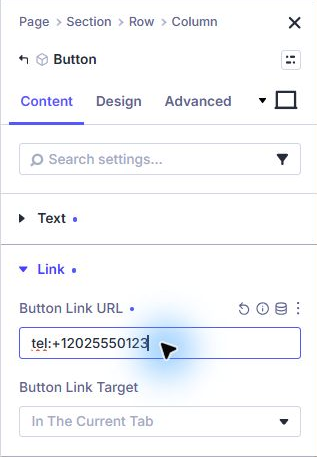
Leave the link target in the same window. Do not put https:// before tel:. The visible text can still show a friendly formatted number such as (202) 555-0123.
Give the email button a mailto: link
Open the other Button’s Content → Link → Button Link URL and use mailto:hello@example.com, substituting your address. Keep it simple initially; a subject line is optional.
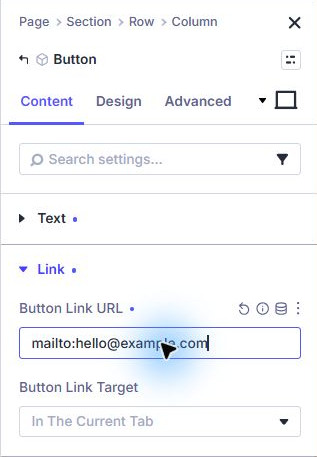
If you add a subject, encode spaces: mailto:hello@example.com?subject=Website%20enquiry. Avoid placing private information in a prefilled URL. A mailto link depends on the visitor having an email application configured.
Make the actions readable on phones
Style the pair with your existing button preset, or use a dark background and light text. Add enough padding for a comfortable tap and room between the two actions. Let the buttons stack if two columns become cramped.
Check the normal, hover and keyboard-focus states. A button should stay legible before someone touches it. Keep the visible focus indicator so keyboard visitors can see which action they are about to open.
Build on this: Create a reusable button style ↗
Test the published page on the right devices
Save and exit Divi. On your phone, tap the calling button and inspect the proposed number; you do not have to place the call to check the destination. Test the email button and inspect its recipient. Cancel the draft if this is only a test.
On a desktop without a calling or mail app, a chooser or error may appear. That does not necessarily mean the link is malformed. Keep the plain contact details and your contact form available as alternatives.
- The phone link contains the right country code and number.
- The email composer shows the correct recipient.
- Example contact details have been replaced.
- Both actions work from the public page, outside the Builder.
- The buttons remain readable on mobile and with keyboard focus.
YOU’VE BUILT IT
Give visitors a clear next step.
Use these links where a call or email genuinely helps. For a detailed enquiry, pair them with a short contact form.
References & notes
Written for Divi 5. Check the features available in your installed release; labels can change. Editor screenshots show actual controls on our Testing site. Diagrams are explanatory illustrations.
Published November 14, 2026 · By Divi Ready Themes · Independent of Elegant Themes.