DRT HOW 2s / DIVI 5 & WORDPRESS TUTORIALS
BUILD IT · HOW 2 #02
A useful library.
A faster way to find it.
How to build a searchable, filterable resource library in Divi 5 using the Resources design from Filterz Pack #1.
Checklists. Ideas.Publish once. Keep adding.
→
Less searching.
More finding.
WHAT YOU’LL BUILD
Turn useful posts into a collection people can explore.
Give visitors a search box, meaningful topic filters and readable resource cards. New posts can join the library without rebuilding the page.
You need: WordPress, Divi 5 with Loop Builder, Post Filter and Pagination, and the paid Filterz Pack #1. This walkthrough uses Resources; the Shop edition has different requirements. Test on a draft or staging page first.
Give your library a clear job
Start with a small collection people can understand: guides, checklists and worksheets for your customers. In WordPress, create a parent category called Resources, with useful child categories such as Guides and Checklists. Use tags for subjects such as Accessibility or Planning.
Create six or more published posts. Give each a meaningful title, a short excerpt and the appropriate categories and tags. For this workflow, assign each resource to Resources as well as its child category. Keep ordinary news posts out of Resources.
Put a guide or checklist inside the post itself, or link to your own file there. The card opens that post. Use filenames and links that customers can recognize.
Import the Resources design into a new page
Unzip Filterz Pack #1 on your computer and open its Resources edition. Read the included START-HERE guide. Create a new WordPress page called Resource Library and save it as a draft.
Open Divi 5 on that page, start with a blank canvas and use Page Menu → Import to select Filterz-Resources-Divi5.json. Import the individual JSON, not the collection ZIP. Choose Replace Existing Content only when this draft is empty or you deliberately intend to replace it.
For a normal page with your site navigation, use your full-width page setup and check the surrounding spacing. The Blank Page template is useful for a standalone design, but removes the normal site frame.
The layout brings its design and connected modules. It does not import our sample articles or photographs. Your own published posts supply the results.
Tell the cards which posts belong here
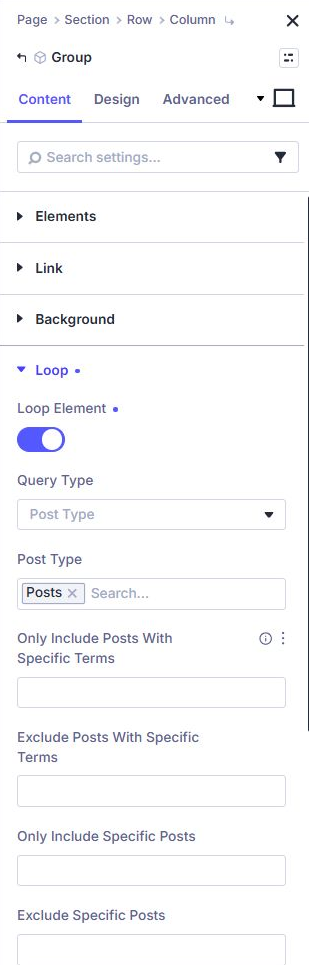
Open Layers and locate fz-product inside the results area. The shared pack label says “product,” but this edition uses WordPress posts. Open that Group’s settings and expand Content → Loop.
Confirm that Loop Element is enabled and the Post Type is Posts. Under Only Include Posts With Specific Terms, select your Resources category. Keep Posts Per Page at six while you test. This limits the actual content query so unrelated news does not fill the library.
Keep the search, results and pagination connected
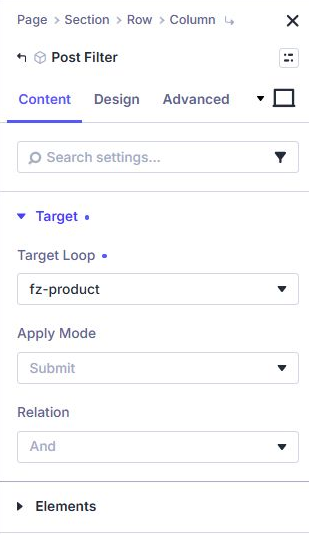
Open fz-filter, the Post Filter module in the left column. Under Content → Target, confirm that Target Loop points to fz-product. The supplied Resources design uses Submit mode and an And relation.
Open the Pagination module beneath the results and confirm its Target Loop points to that same Group. Keep pagination outside the repeated card. If you duplicate the complete collection, give the new loop a unique identity and reconnect its filter and pagination.
Search reads post titles and content. Category and subject controls use categories and tags from your content. To change a control’s label, edit its Post Filter Item rather than replacing the connected form with a generic contact form.
Style the library without breaking its tools
Replace the introduction and sidebar text with language suited to your collection. Use short labels: Search resources, Topics and Subjects tell people what to do more clearly than internal taxonomy names.
The